Core Features
User Interface
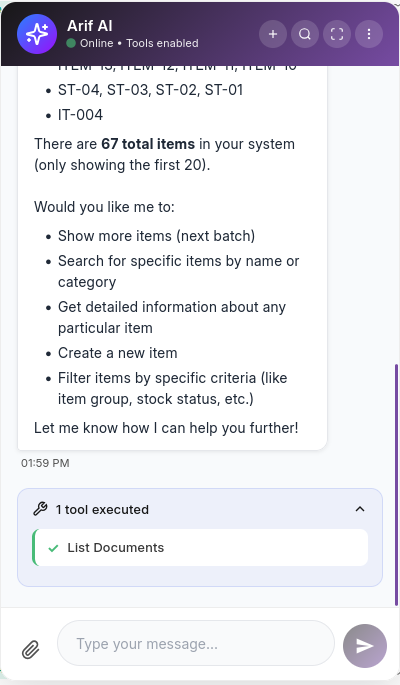
Arif AI provides a modern, responsive chat interface that integrates seamlessly into the Mjara ERP workspace.
Chat Widget
The chat widget is the primary way users interact with Arif AI. It appears as a floating panel and supports both light and dark themes.
Light Mode

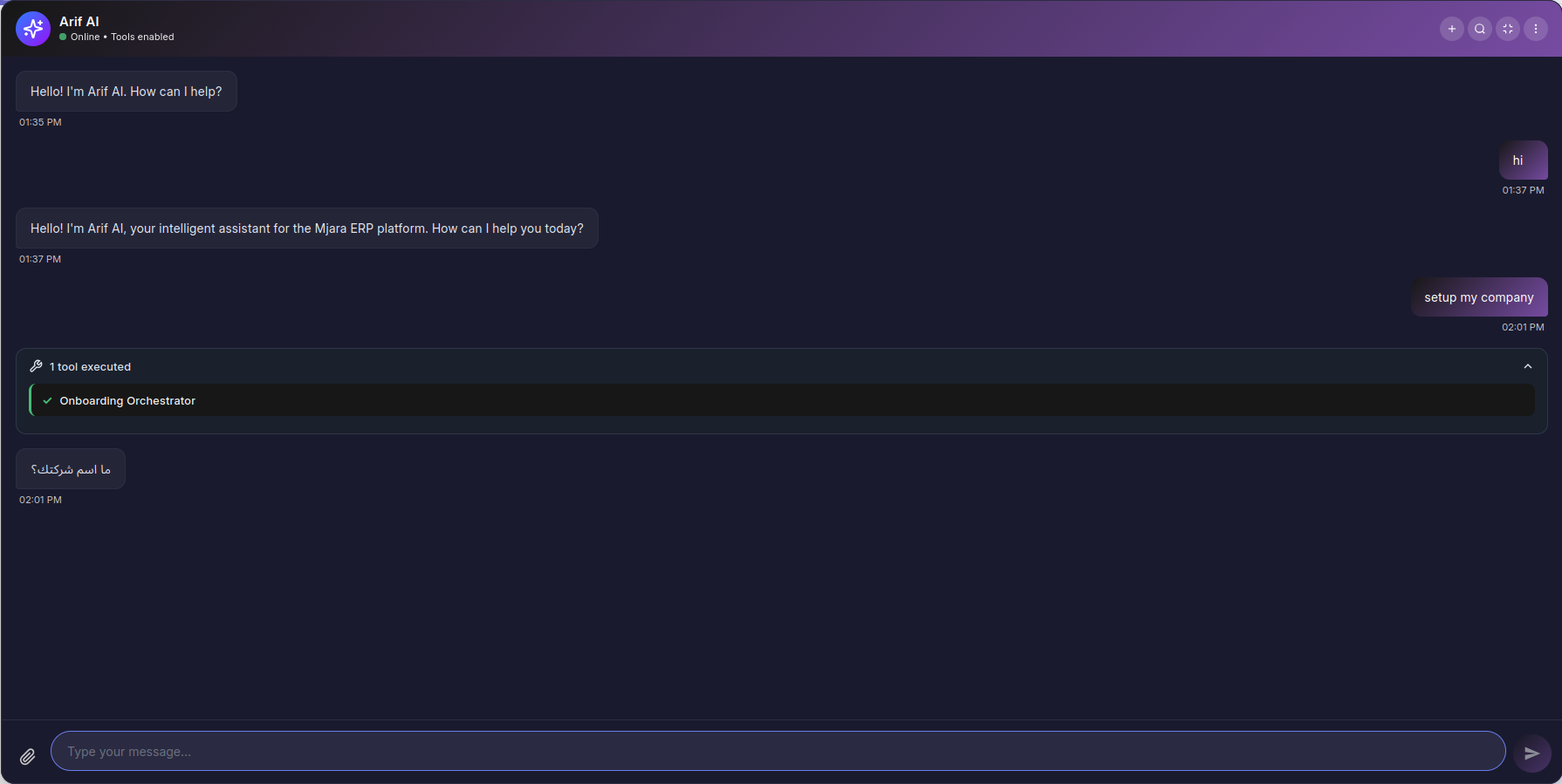
Dark Mode

Key Elements
- Header — Shows Arif AI status (Online/Offline) and whether tools are enabled
- Message Area — Displays the conversation with timestamps
- Quick Actions — Shortcut buttons for common tasks:
- Import Data — Upload files or records
- Create Invoice — Generate a new invoice
- System Setup — Configure settings
- Get Support — Get help and support
- Message Input — Text field with file attachment support
- Action Buttons — New conversation, search, settings, and more options
Chat-Based Onboarding
The onboarding flow guides users through company setup via a conversational interface.
Step 1 — Starting the Onboarding
Arif AI greets you and begins asking setup questions one at a time.
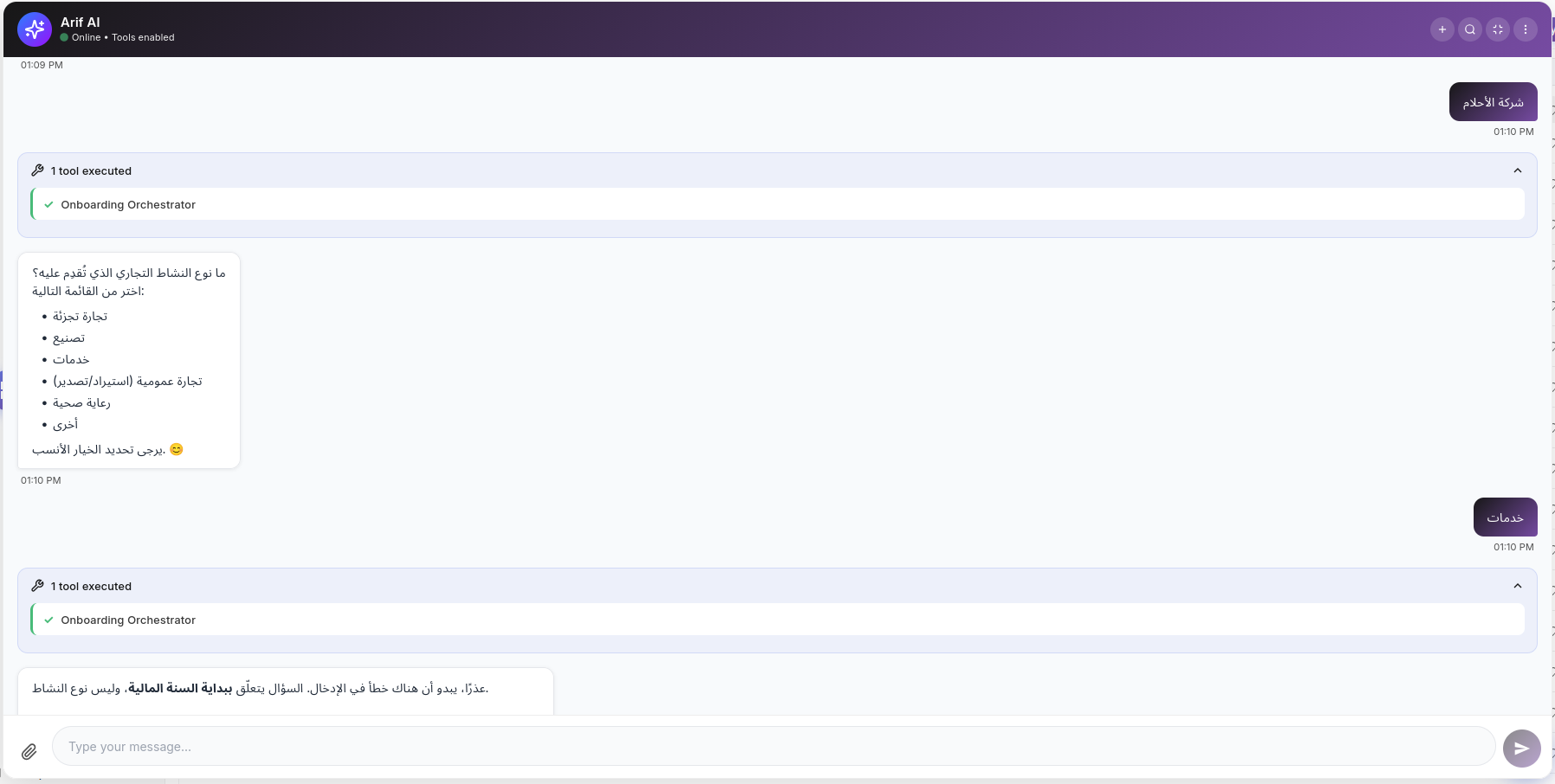
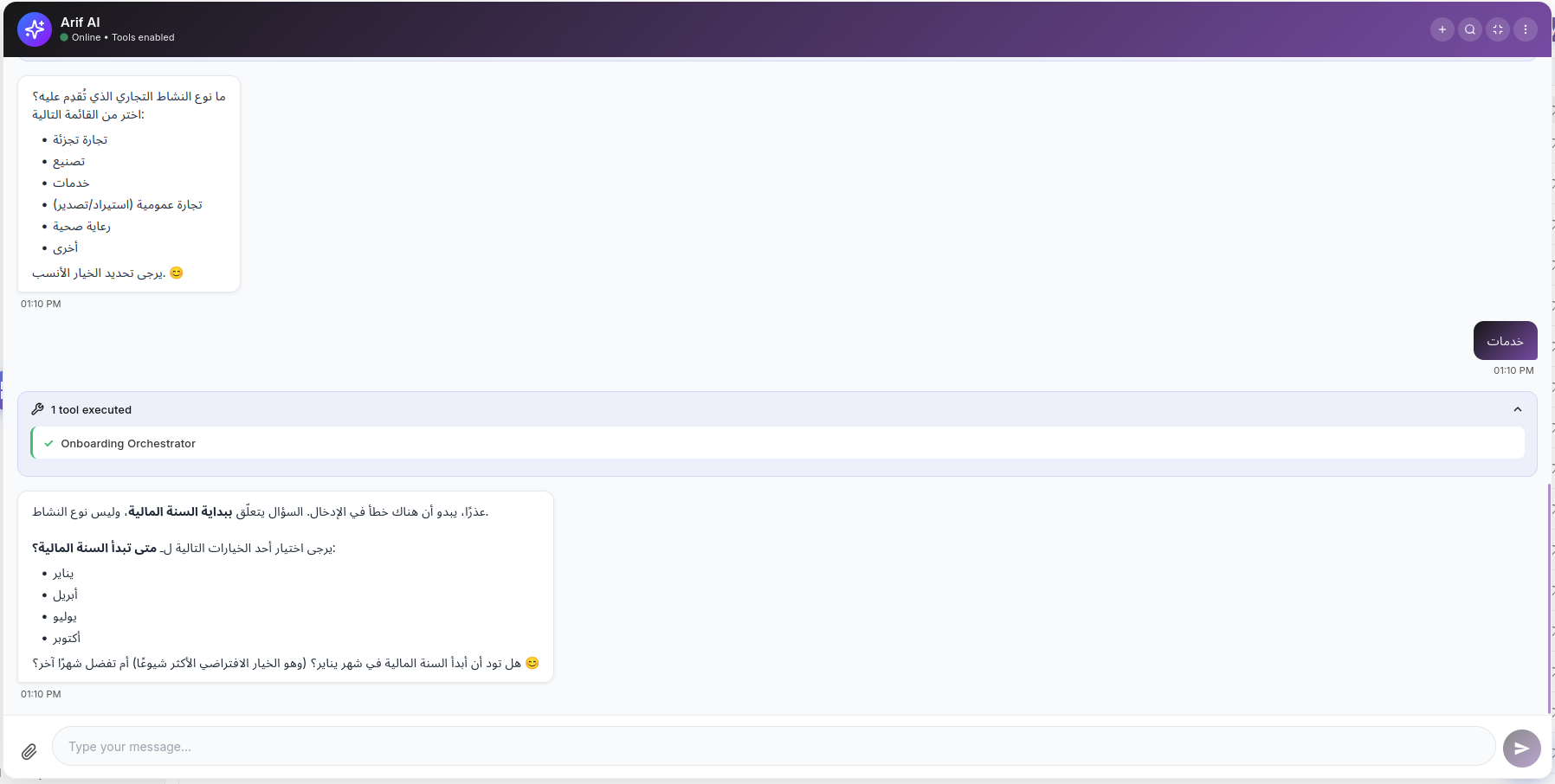
Step 2 — Answering Questions
The wizard collects information about your company, industry, modules, and preferences.
Step 3 — Configuration Review
Before executing, Arif AI presents a summary of the configuration for your review.
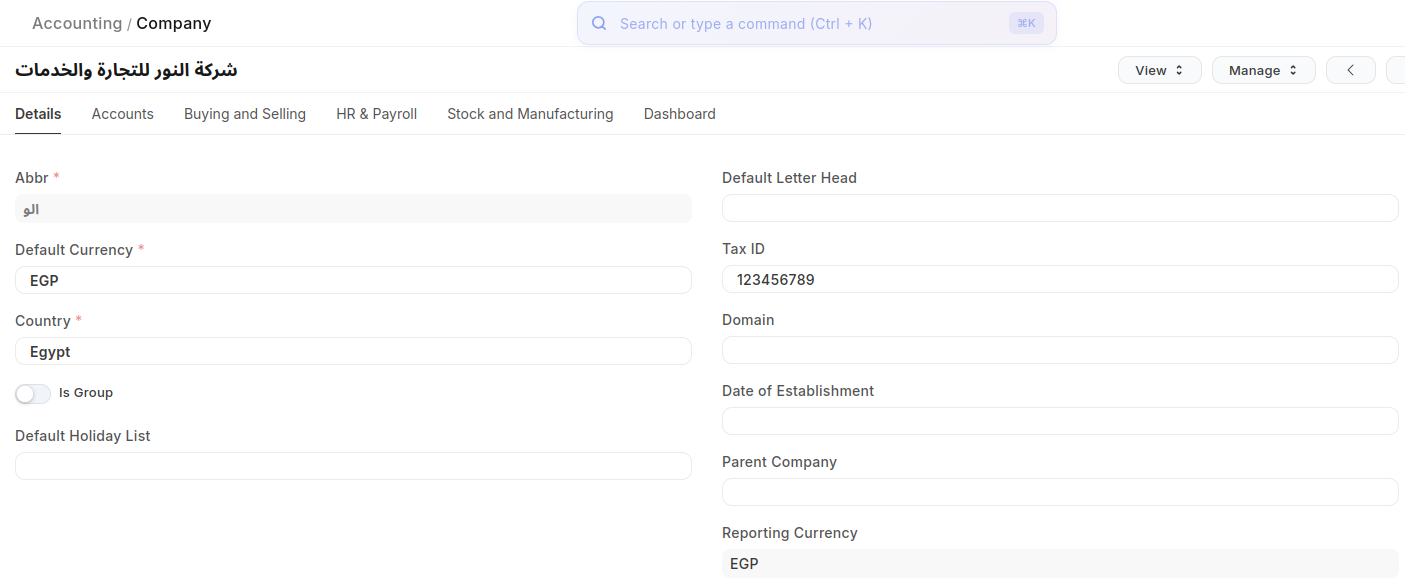
Company Created
Once confirmed, Arif AI creates your company with all configured settings.
Tool Execution Display
When Arif AI executes tools, the chat shows which tool was called and its results.