WhatsApp integration allows you to send and receive WhatsApp messages from within the lead and deal pages in Mjara CRM. This streamlines communication and keeps all interaction history centralised for better customer relationship management.

A dedicated WhatsApp tab is available on both Lead and Deal pages, providing a real-time chat window for efficient communication.
- Lead: The mobile number field of a Lead is used to initiate and receive WhatsApp messages.
- Deal: The primary contact number associated with a Deal is used for WhatsApp communication.
Installation
WhatsApp integration requires a separate app called "Mjara WhatsApp" developed by Shridhar [Source Code].
- Mjara Cloud Marketplace: The app is available on the Mjara Cloud marketplace for easy installation.

- Manual Installation: Clone the app's repository from Github: <[Source Code]>
Configuration Steps
To enable WhatsApp integration in Mjara CRM, follow these steps:
- Obtain WhatsApp Business Credentials: Refer to the official WhatsApp guide for creating a WhatsApp Business account and acquiring the necessary credentials WhatsApp Business Account Creation Guide.

- Configure WhatsApp Settings:

- Click the dropdown menu on the top left logo and select "Settings."
- Locate the WhatsApp Settings.
- Enter the credentials obtained in step 1.
- Enable the WhatsApp integration.
-
Set up the Webhook:

A webhook URL is required to establish communication between Mjara CRM and WhatsApp Business. Use the following URL format, replacing
<yoursitename>with your actual Mjara CRM site name and including the Webhook Verify Token you created in the WhatsApp Settings in Verify token fieldhttps://<yoursitename>/api/method/Mjara_whatsapp.utils.webhook.webhook
-
Subscribe to webhook fields: Subscribe all webhook fields (recommended - whatsapp docs) but atleast subscribe to
messages&message_template_status_update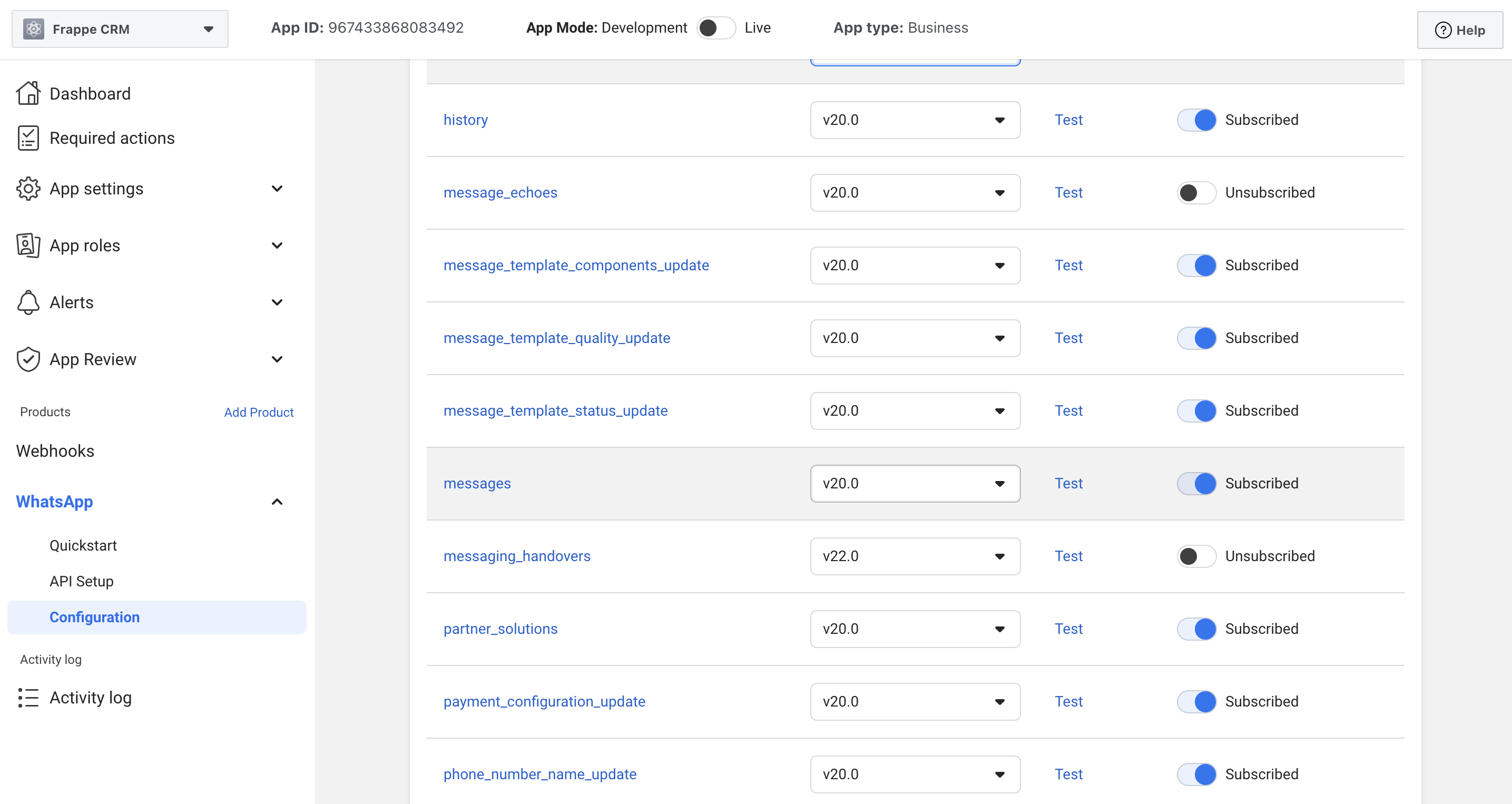
Creating WhatsApp Templates
To ensure compliance and streamline communication, Mjara CRM utilizes WhatsApp templates. These pre-approved messages can be created and managed within the system.


- Navigate to the WhatsApp Templates DocType.
- Click on Add WhatsApp Template.
- Fill in the required details for your template message.
- Save the template.
With these configurations in place, you're ready to leverage WhatsApp Business for efficient communication with your leads and deal contacts directly within Mjara CRM.
Important Note: Due to WhatsApp Business limitations, you can only initiate communication by sending a pre-approved WhatsApp template. You can only send regular messages after receiving a reply from the customer.
Last updated 3 weeks agoWas this helpful?
Submit
Thanks!