Setting Up Dropbox Backups
We always recommend customers to maintain backup of their data in Mjara ERP. The database backup is downloaded in the form of an SQL file. If needed, this SQL file of backup can be restored in the another Mjara ERP account as well.
You can automate database backup download of your Mjara ERP account into your Dropbox account.
Note: If you are Mjara Cloud user, onsite and offsite backups are automatically created for you: [Documentation] [Documentation]
To setup Dropbox Backup, > Home > Integrations > Dropbox Settings
Step 1: Login to Dropbox Developer area
https://www.dropbox.com/developers/apps
Step 2: Create a new Dropbox app

Step 3: Fill in the details for your new app
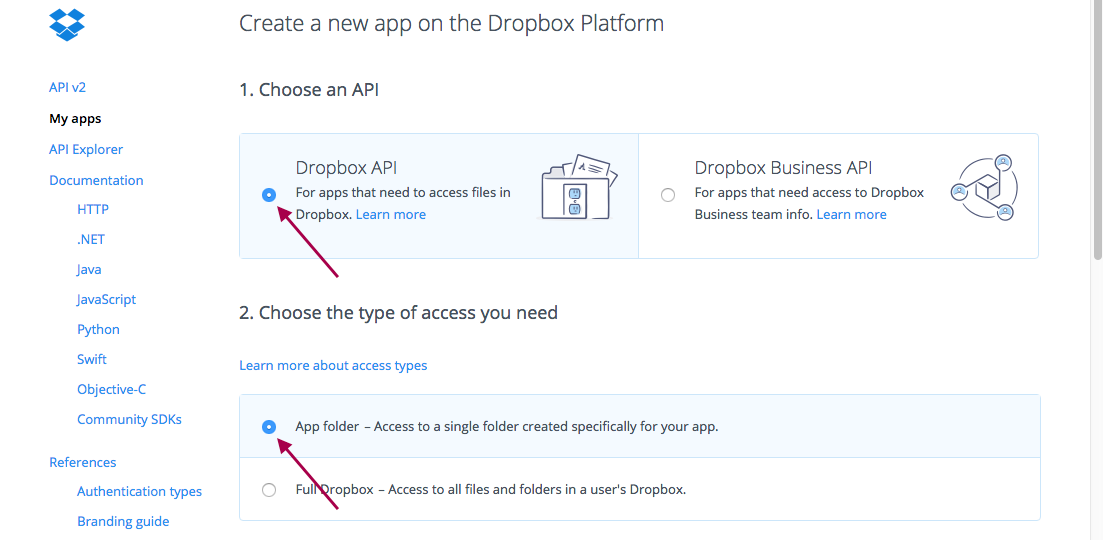
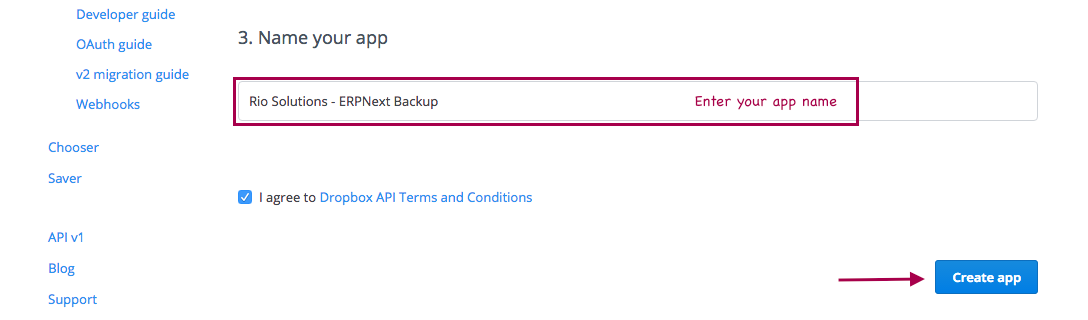
![External Resource] [External Resource]
Step 4: Insert your custom domain Redirect URI
https://{yourwebsite.com}/api/method/mjara.integrations.doctype.dropbox_settings.dropbox_settings.dropbox_auth_finish 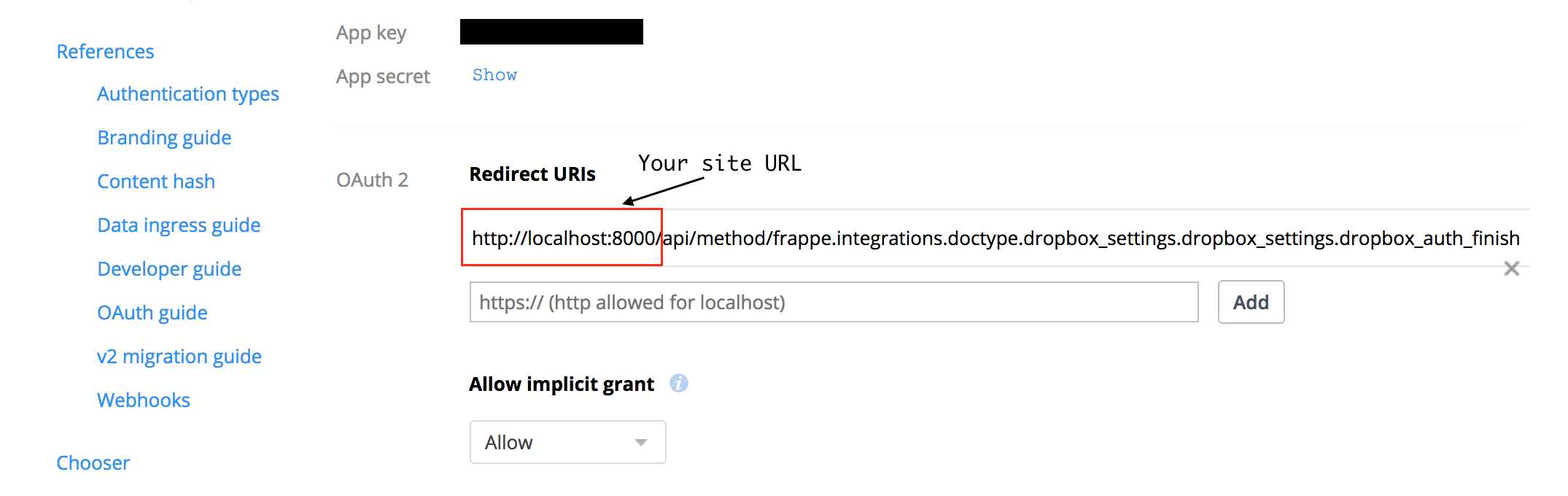
Step 5: In a new window, open the Dropbox Settings page in your Mjara ERP installation
Step 6: Set backup frequency and email
Set the frequency to download your site backups to your Dropbox account. 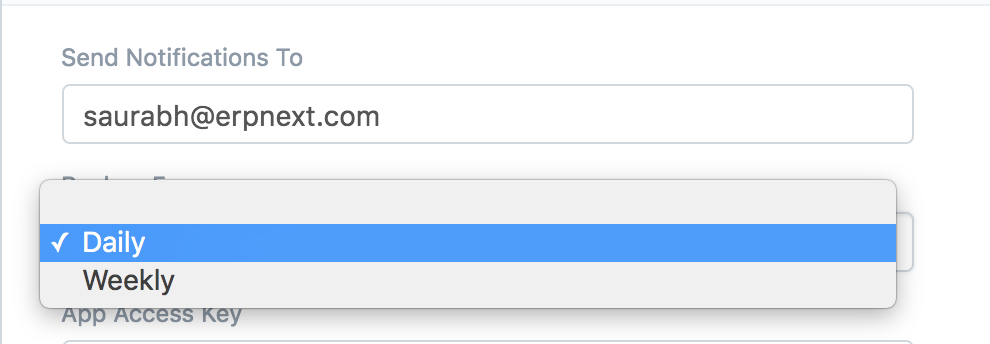
Step 7: Input Keys from your Dropbox App window
From your Dropbox App page, enter the app key and (unhidden) app secret into the Mjara ERP Dropbox settings page.
Alternatively, you can enter it manually in sites/{sitename}/site_config.json as follows,
       {
 "db_name": "demo",
 "db_password": "DZ1Idd55xJ9qvkHvUH",
 "dropbox_access_key": "ACCESSKEY",
 "dropbox_secret_key": "SECRECTKEY"
}
Step 8: Click Save before continuing
Step 9: After saving, click "Allow Dropbox Access"
The Dropbox login page will open in the new tab. This might require you to allow pop-up for your Mjara ERP account.
Step 11: Allow Dropbox Access
On successful login, you will find a confirmation message as following. Click on "Allow" to let your Mjara ERP account have access to your Dropbox account. 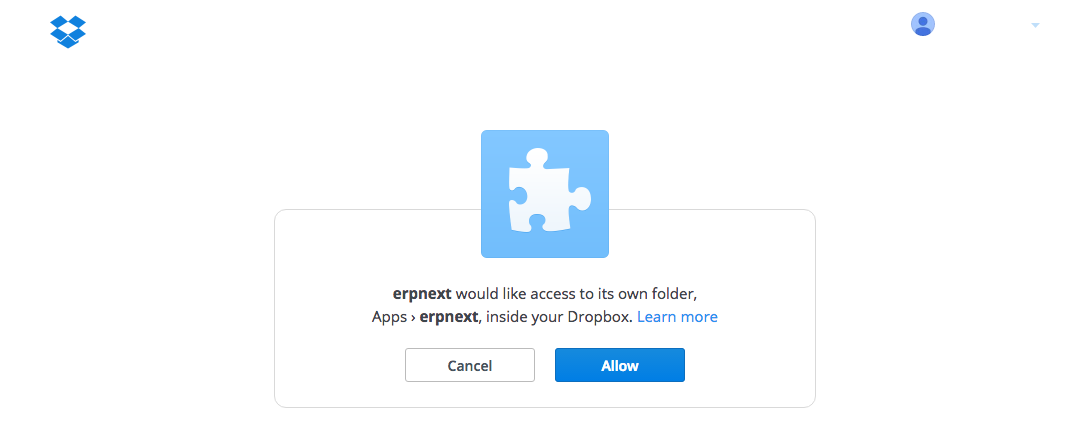
Step 12: Confirm Backups Work
From the Mjara ERP Dropbox page, click Take Backup Now and then go to you Dropbox files view. You should see a new folder in Dropbox named Apps and inside of it your {New App} folder. Inside of it should be backup folders for both files and database. So for an app named mjara-erp, following are the folder locations:
Database files: /Apps/erpnext/database
Public files: /Apps/erpnext/files
Private files: /Apps/erpnext/private/files
Note: If the compressed backup size exceeds 1GB (Gigabyte), the system will upload the latest available backup to Dropbox instead of generating a new backup file.
Last updated 3 weeks agoWas this helpful?
Submit
Thanks!